Upload a clear image
Choose a JPG, PNG, or WebP up to 15 MB. A distinct subject gives background removal a better starting point.
✦ 100% FREENo Watermark
Turn JPG, PNG, and WebP images into transparent PNG cutouts with Free BGRemover’s AI model. Start free with no account required, then review and download your result.
Start with an image
JPG, PNG, or WebP. Up to 15 MB.
Privacy detailsUpload a JPG, PNG, or WebP, let Free BGRemover’s AI model create a cutout, then review and download a transparent PNG.
Choose a JPG, PNG, or WebP up to 15 MB. A distinct subject gives background removal a better starting point.
Free BGRemover’s AI model automatically identifies the subject and creates a transparent-background cutout preview.
Review the checkerboard around the edges, then download the transparent PNG when it looks right.
Choose a scene, then drag across the example to compare the original image with its transparent PNG cutout. Explore products, people, animals, hair and fine edges, vehicles, and graphics in one place.
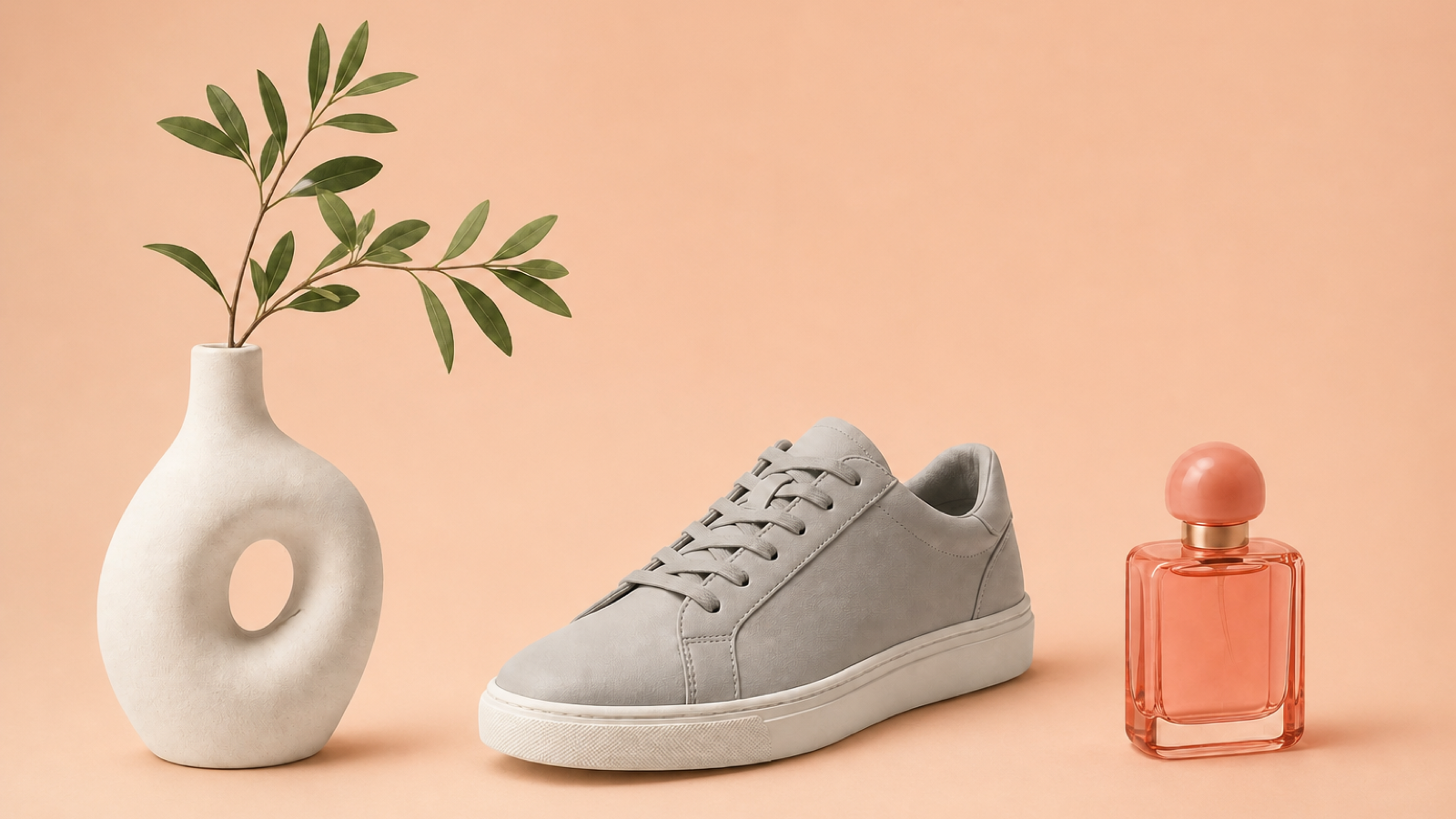
Turn a product photo into a transparent PNG for listings, catalogs, storefront graphics, and marketing layouts. Before downloading, inspect handles, glass, shadows, thin edges, and gaps around the product.
A clear, well-lit subject with contrast from its background gives the AI model a clearer edge to separate—and gives you a more useful preview to check before download.
Choose an image where the edges of the person, product, animal, or object remain visibly distinct from the background.
A focused, well-lit original gives the AI model a clearer outline than a tiny, blurry, or heavily compressed image.
Patterns, clutter, shadows, and colors close to the subject can make the edge harder to separate and assess.

Free BGRemover is for anyone who needs a quick, no-signup way to isolate a subject for personal, selling, client, marketing, vehicle-listing, or design work.
Remove the background from a profile photo, selfie, or personal graphic, then use the transparent PNG in a collage, presentation, or personal project.
View portrait examplePrepare a transparent product image for a listing, catalog, or storefront graphic. Check handles, glass, shadows, and thin edges before download.
View product exampleCreate a transparent first pass for a client portrait or product shot, then inspect hair and fine edges before continuing in your editor.
View fine-edge exampleCreate a reusable transparent subject for a campaign, social post, article image, presentation, or promotion. Review the outline before placing it in a layout.
View graphics exampleRemove the background from a vehicle photo for a listing or campaign graphic, then check mirrors, wheels, windows, and reflections.
View vehicle exampleTurn a logo, illustration, or simple graphic into a transparent PNG for layouts and presentations. Check thin lines and small gaps before download.
View graphics exampleYour output
Review the checkerboard, then download a transparent PNG with the original background removed—ready for a design, listing, profile, presentation, or graphic.
Your download keeps the subject and removes the original background. When you need a background instead, create a new one, including a clean white background.
Use the checkerboard to inspect hair, thin edges, small gaps, and low-contrast details.
Place the transparent image or new-background result in the design, presentation, profile, listing, or graphic workflow you already use.

Know before you upload
Get practical answers about starting free, mobile use, uploads, processing time, image privacy, output size, new backgrounds, transparent PNGs, and detailed edges.
Upload a JPG, PNG, or WebP image, let Free BGRemover’s AI model create a cutout, review the result, then download a transparent PNG or create a new background.
Free BGRemover is free to use for the current image background-removal flow, and you can upload an image, review the cutout, create a new background, or download a transparent PNG without creating an account.
Yes. In a current mobile browser, you can upload a supported image, review the result, and download a transparent PNG. For the smoothest experience, use an up-to-date browser and a stable connection.
Processing time depends on your image size, device, and connection. The first use can take longer while the AI model is prepared; keep the page open until the result preview is ready.
Free BGRemover accepts JPG, PNG, and WebP images up to 15 MB.
Free BGRemover downloads a high-resolution PNG with the background removed. Review the result before downloading to confirm it is right for your next layout, listing, profile, or graphic.
The current tool processes your image in your browser session so the preview and download can work. No account is required, and the image is not used to train our own models. See the Privacy Policy for details.
Yes. After background removal, Free BGRemover can create a new background, including a clean white background.
After reviewing the cutout, you can download a PNG with a transparent background. You can also create a new background when a transparent result is not the right fit.
Free BGRemover lets you remove the background, review the result, and create a new background such as a clean white background. It is not a full image editor with manual retouching tools.
Yes. Upload a clear image, review the cutout, then use the transparent PNG or a new background in your listing, profile, design, presentation, or campaign workflow.
Fine details depend on the source image. Inspect hair, thin edges, small gaps, and low-contrast areas against the checkerboard before download; a sharper image with clearer separation gives the AI model a better starting point.
Try a sharper, well-lit image where the subject stands out from its background, then review the new cutout. For manual retouching, continue in the editor you already use.

Tutorials & Guides

Tutorials & Guides

Tutorials & Guides

Tutorials & Guides

Tutorials & Guides

Tutorials & Guides
Upload an image now to get a transparent PNG for your next product listing, presentation, profile image, or graphic.
Upload an image